

Getting started
This page presents the first steps with the MRPiZ robot. Please follow the steps in order.
Your need :
- MRPiZ robot,
- SSH software (like Putty software),
- computer with Wifi,
- micro-SD card for operating system (8 Go)
- 18650 rechargeable batterie
The different steps :
- Install the operating software on a micro-SD card,
- Install the battery,
- Recharge the battery,
- Starting the MRPiZ robot,
- Connect to the MRPiZ robot.
1. Install the operating software
- Download the compressed operating system file:
Os Raspian : operating system ZIP file for the robot
2. Install the battery
- Install a 18650 LiPo battery of 3.6V / 3.7V with a capacity of 2000 mAh minimum.
Example of a compatible battery:
3. Recharge the battery
NEVER START THE ROBOT WHEN CHARGING THE BATTERY.
To recharge the battery of the robot MRPiZ you need:
- Micro USB cable,
Then to recharge the battery of the robot:
- Move the switch to the OFF position to turn off the robot.
- Connect the micro-USB cable
- The red ‘Charging’ led must be on. She informs that the battery is being recharged.
- When the yellow ‘Full’ LED is on, this will indicate that your battery is being charged.

2. Turning on the robot
- Turn the switch to ON position.
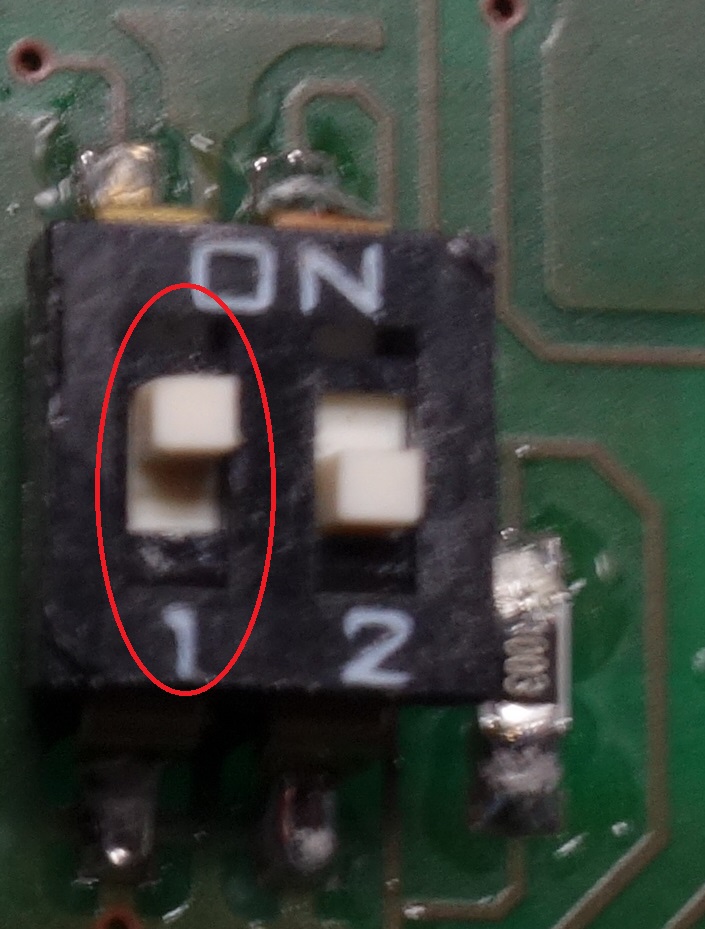
- The ON led should flash to indicate the activity of the robot. If this led does not flash, then check that switch 1 is in the up position.
3. Robot connection
The MRPiZ robot is configured as a default access point.
- If you are on Ubuntu:
Install ssh : ssh
Connection via ssh :
$ ssh pi@192.168.42.1 -p 22
- If you are on Windows :
- Connection to the MRPiZ Wifi robot via your computer :

- Password : Raspberry
- Connect to the MRPiZ robot via an SSH client :

- Putty configuration :
- IP Address : 192.168.42.1
- Port : 22
- Connexion type : SSH

In command line :
$ putty.exe -ssh root@192.168.42.1 22
- Open:

- login : pi
- password : raspberry

You are connected on the robot MRPiZ, congratulations!
- Main robot directory :
$ cd /home/pi/MRPiZ
Directory :
- Python : Examples, API in python language
4. Stop the robot
To stop the robot, you must first stop the Raspberry Pi board.
If you are connected to the Raspberry Pi board :
- Command to stop the Raspberry Pi :
$ sudo halt
Then, when the green led of the Raspberry Pi card is no longer active you can turn off the control card via the on / off button.
If you are not connected to the Raspberry Pi board :
-
Stop the Raspberry Pi board, via the Reset button, press the Reset button for 6 seconds.
-
Then, the ON / OFF switch in the OFF position.